浏览自己的 Google Drive(可选):需要自己的 Google OAuth 客户端。在 Google Cloud 控制台创建项目、启用 Google Drive API、配置 OAuth 同意屏幕(把自己加为测试用户)、创建类型为 桌面应用 的 OAuth 客户端 ID,然后把客户端 ID 和密钥填入 设置 > 网盘。之后在 Google Drive 页按 登录:浏览器会打开登录页面,完成后程序自动继续。访问权限为只读。
Portable Volume Viewer is a no-install viewer for volume images (image stacks) on Windows 10 / 11. It shows a volume rendering and the XY, YZ and XZ slices side by side, lets you annotate and measure, takes screenshots, switches between Chinese and English at any time, works with a mouse, a pen or your fingers, and opens data from Google Drive, Baidu Netdisk or any web link.
1. Download and start
Sign in on this site with your VyZ.World account and download the zip file. No license or activation is needed.
Before unzipping, unblock the file: right-click the zip > Properties > tick Unblock > OK. Otherwise Windows asks for confirmation every time the program starts.
Unzip it into any folder you can write to (paths with spaces or Chinese characters are fine) and double-click PortableVolumeViewer.exe.
The program is not code-signed. If Windows shows "Windows protected your PC", click More info > Run anyway.
Requirements: Windows 10 or 11, 64-bit. Python or other software is not needed. As a rule of thumb, have free memory of at least twice the size of the volume you open. A graphics card is used for the 3D view when available; without one the program falls back to software rendering automatically.
To try the program without your own data, choose File > Sample data (or the Sample data entry in the Open menu): a synthetic porous material is created.
2. The window
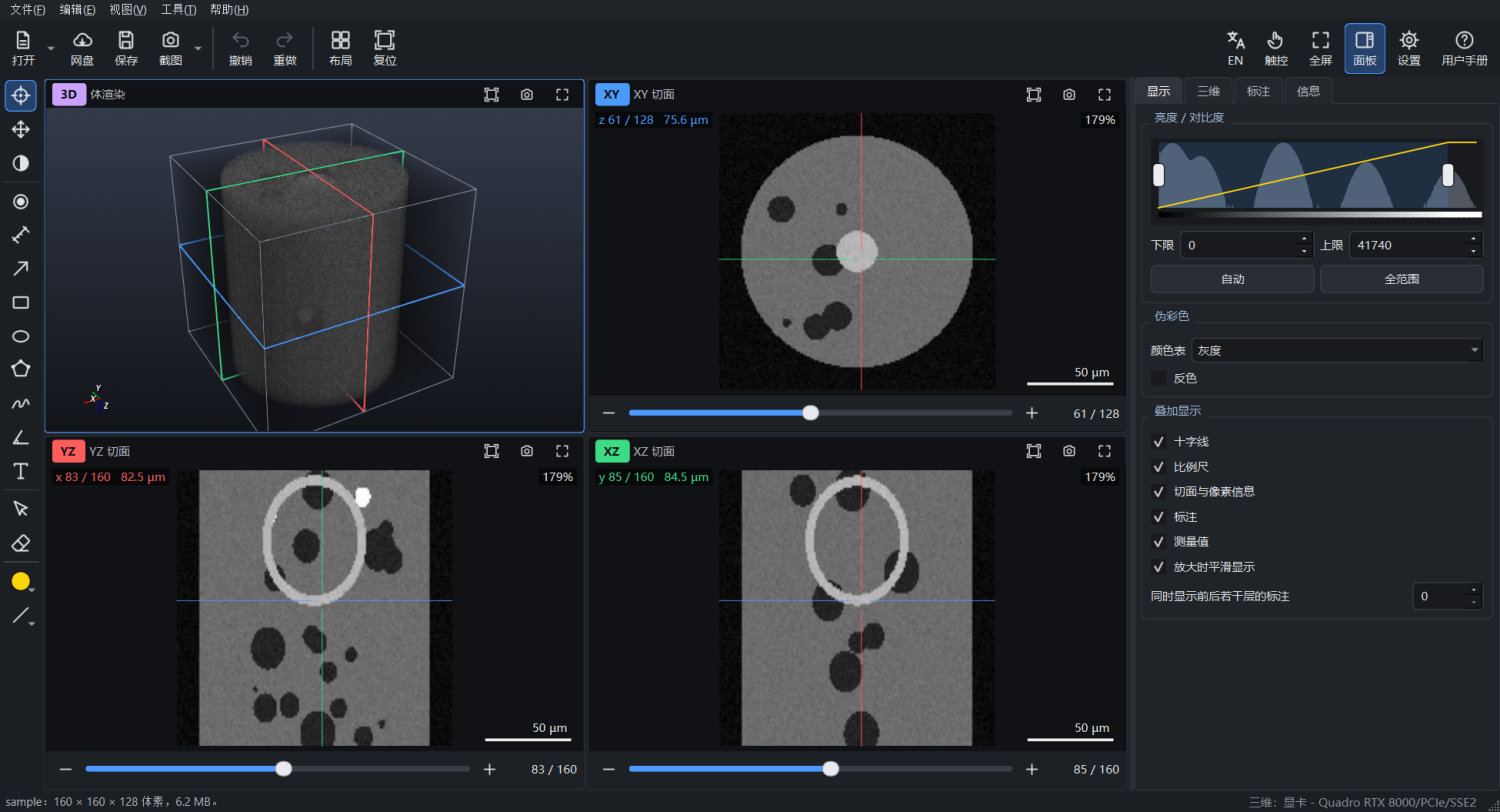
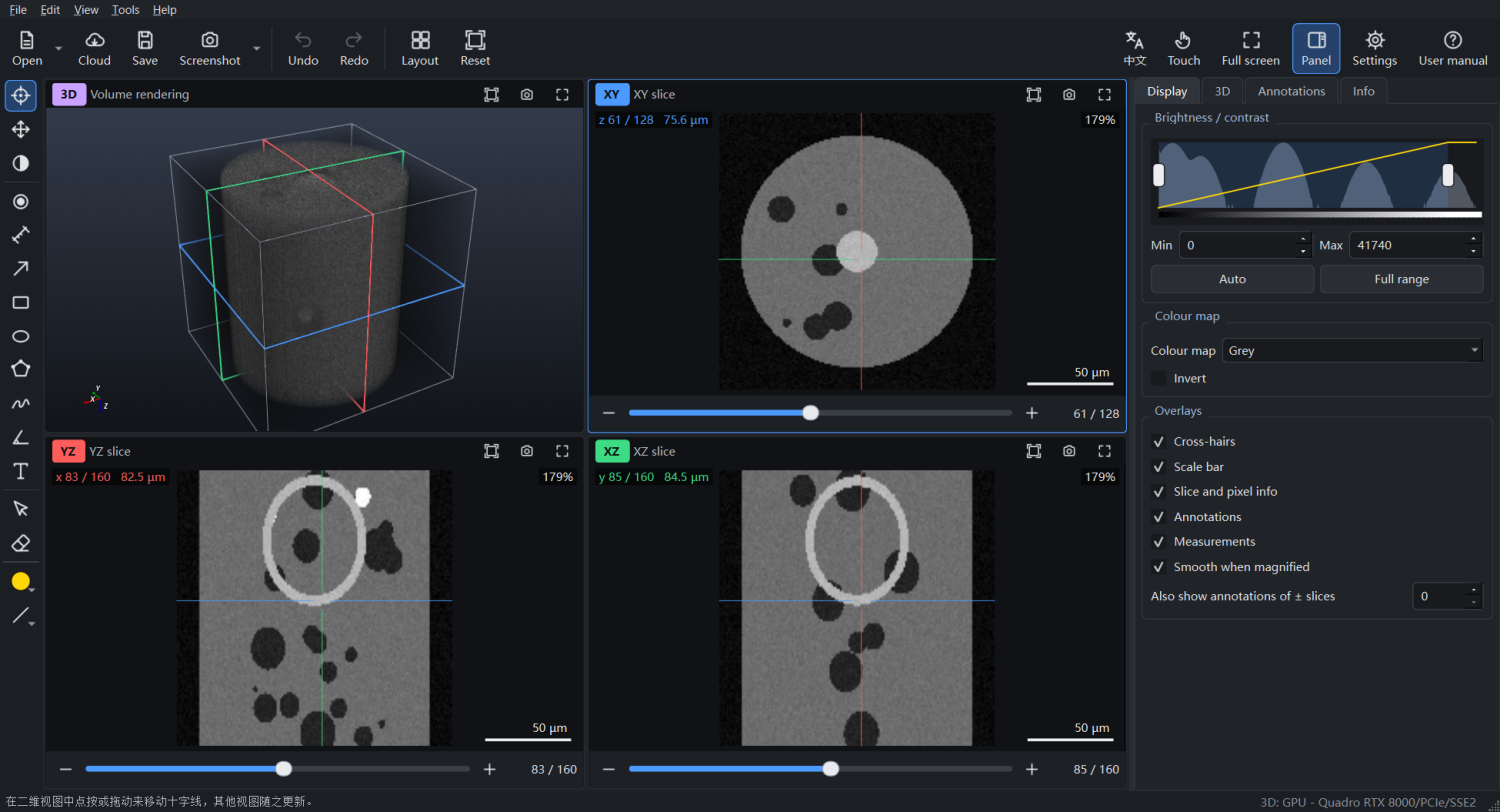
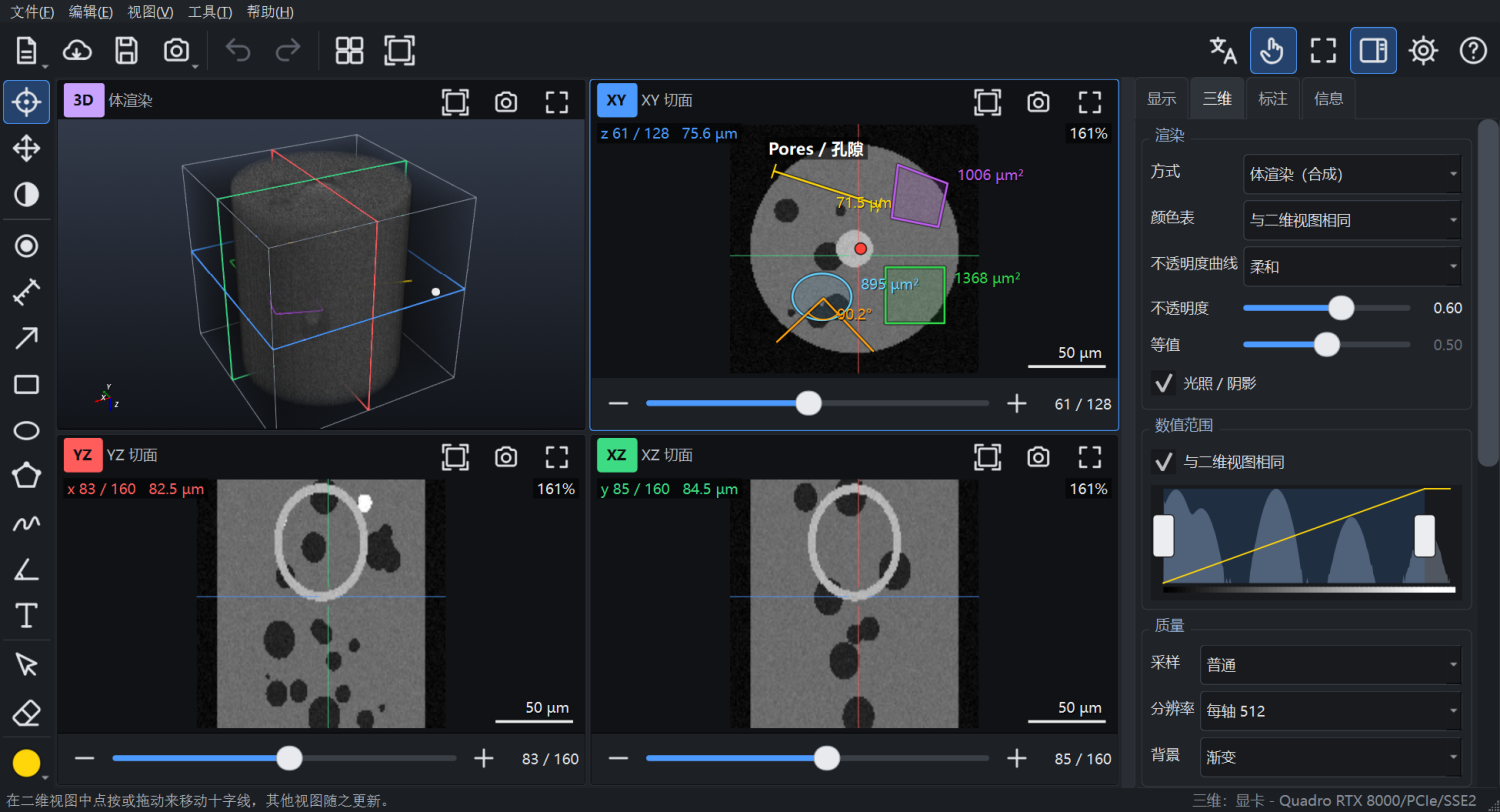
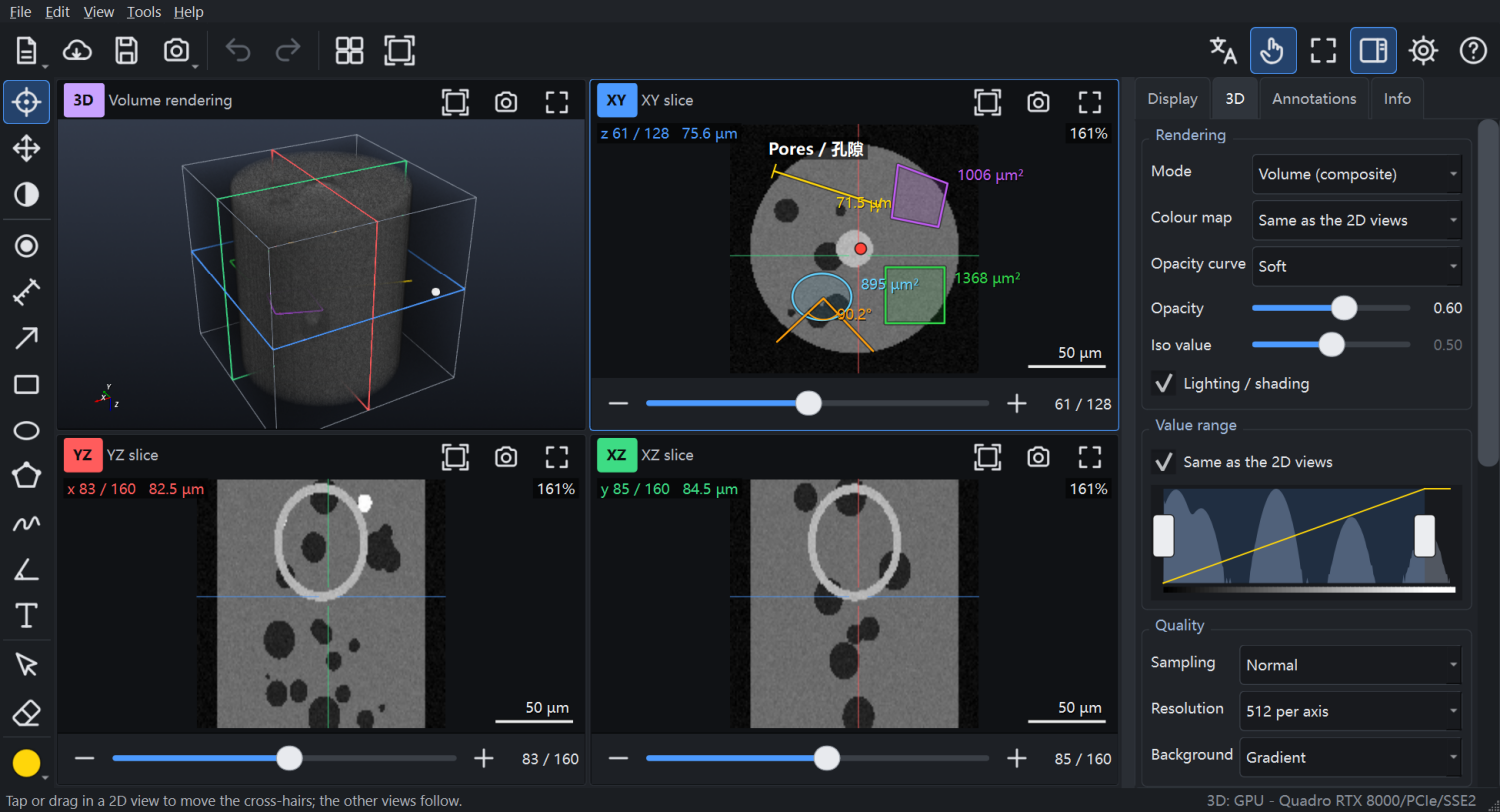
The main window: tool column (left), the four views, the side panel (right).
Toolbar (top): Open (the arrow opens the menu with folder, cloud, web link, raw data, sample data and recent files), Cloud, Save annotations, Screenshot (the arrow opens more screenshot choices), Undo, Redo, Layout (maximize the active view / back to 2 x 2), Reset (fit all views), and on the right: language (中文 / EN), Touch mode, Full screen, Panel, Settings, Help.
Tool column (left): the navigation tools (Navigate, Pan, Window/level), the annotation tools, Select / edit, Eraser, the annotation colour and line width. When the window is too short for all buttons, scroll the column with the wheel or a finger.
Four views: 3D volume rendering (top left), XY (top right), YZ (bottom left), XZ (bottom right). Each has a coloured tag, a header with Fit, Screenshot and Maximize buttons, and the 2D views have a slice slider with - / + buttons. The active view has a blue frame.
Side panel (right):Display (brightness/contrast, colour map, overlays), 3D (rendering options), Annotations (list, export) and Info (data properties, voxel size, cursor position). Hide or show it with Panel (F9).
Status bar: messages, the value under the pointer, and the 3D renderer in use.
Maximizing a view
Any view can fill the whole layout: click its Maximize button, double-click inside it, double-click its header, double-tap it with a finger, or press Ctrl+1 (3D), Ctrl+2 (XY), Ctrl+3 (YZ), Ctrl+4 (XZ). Do the same again, or press F10, to return to the 2 x 2 layout. Double-clicking inside a 2D view maximizes it with the Navigate, Pan, Window/level and Select tools (with a drawing tool active, a double-click belongs to the drawing, e.g. it finishes a polygon).
3. Opening data
Data
How
A folder of slice images (TIFF, PNG, JPEG, BMP, GIF, WebP)
Open > Open folder... The images are stacked in natural order (s1, s2, ..., s10). Colour images become grey. If the folder holds sub-folders, the one with the most images is opened.
Open the file; the voxel size and unit come from the header.
A ZIP archive of any of the above
Open the zip; it is extracted into the cache once and reused.
Raw binary without header (.raw, .bin)
Open > Open raw data... and enter the size X Y Z, data type, byte order, header bytes and voxel size. Guess proposes a cube that matches the file size.
You can also drag and drop a file or folder onto the window, open one of the Recent items, or start the program with a path: PortableVolumeViewer.exe D:\data\stack.
Voxel size. Measurements and the true proportions of the YZ / XZ views depend on the voxel size. Check it on the Info page and correct X, Y, Z and the unit if needed, then press Apply. For an image folder only X and Y can be read from the files; Z is then assumed equal to X and a yellow note says so.
Very large data. If a volume needs more memory than is free, the program offers to load it at reduced resolution (every 2nd voxel along each axis = 1/8 of the memory). You can also choose this permanently under Settings > General > Loading. The 3D view always uses a reduced copy (see the 3D view); the slice views show the loaded data at full resolution.
4. The slice views (XY, YZ, XZ)
XY shows a slice at a given Z, YZ a slice at a given X (rows = Z), XZ a slice at a given Y (rows = Z). Slice 1 is at the top. The views are drawn in their true physical proportions. The coloured lines are the other two planes: red = YZ plane, green = XZ plane, blue = XY plane.
Move the cross-hairs (Navigate tool, N): click or drag in a view. The other two views jump to that position.
Change slice: mouse wheel over the view, the slider and the - / + buttons below it, the arrow keys (Page Up / Page Down = 10 slices), or a three-finger swipe up / down.
Zoom: hold the wheel button (middle button) and drag up to zoom in or down to zoom out around the point where you pressed; or Ctrl + wheel; or the + / - keys; or pinch with two fingers. Home or the Fit button fits the slice to the view.
Pan: drag with the right mouse button, use the Pan tool (H), or drag with two fingers.
Brightness / contrast: on the Display page drag the two handles of the histogram (or the band between them), type Min / Max, or press Auto (0.5 % - 99.8 % of the values) or Full range. With the Window/level tool (W) drag left/right for contrast and up/down for brightness in any 2D view.
Overlays: cross-hairs, scale bar, slice and pixel information, annotations, measurements, smooth display when magnified, and showing annotations of neighbouring slices (± N).
The top-left corner of each view shows the slice number and its physical position, the top-right corner the zoom, the bottom-left corner the voxel coordinates and value under the pointer, the bottom-right corner the scale bar.
5. The 3D view
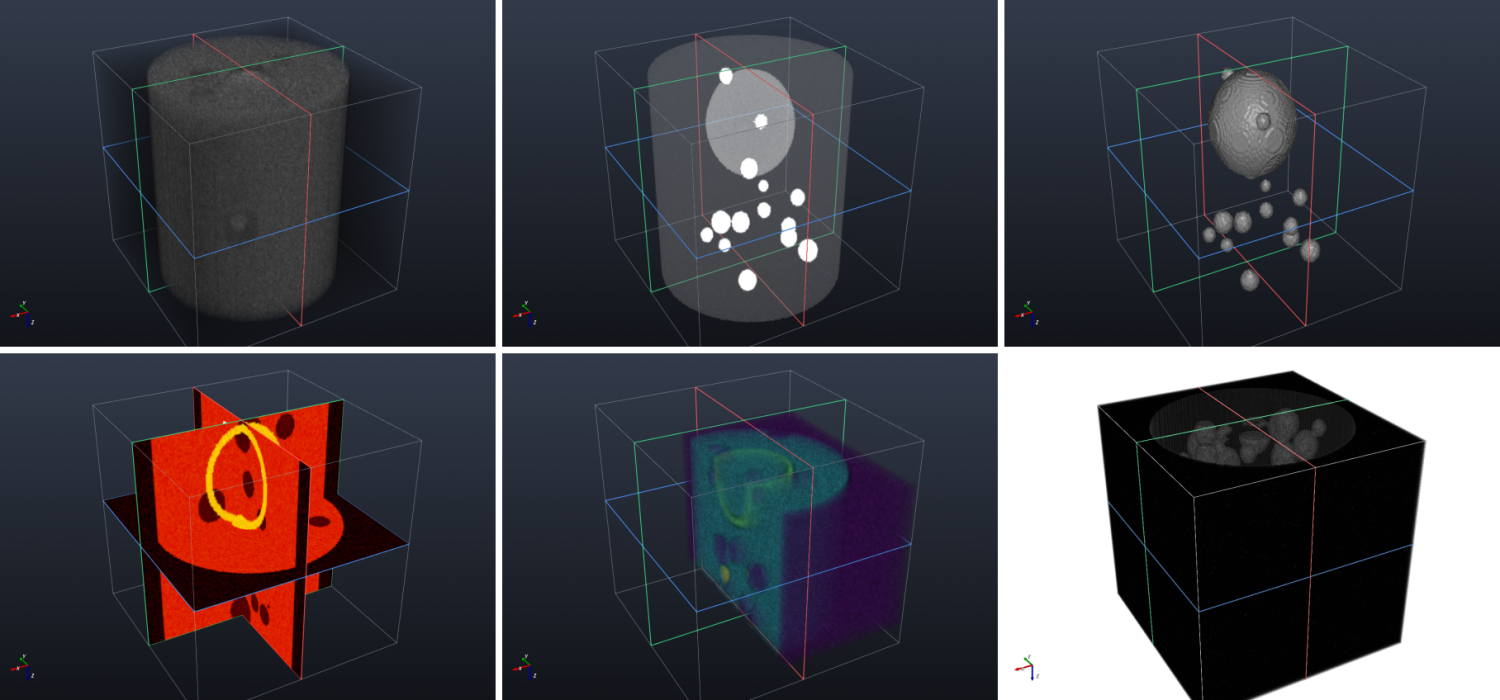
Volume (composite), maximum intensity, iso-surface, slices in 3D, crop, inverse opacity on a white background.
Rotate: drag with the left button or one finger. Pan: drag with the right button, Shift + left button, or two fingers. Zoom: drag with the wheel button held, turn the wheel, Ctrl + left drag, or pinch. Roll: twist two fingers. Reset: the Fit button in the header, Home or R.
Mode (3D page): volume (composite), maximum / minimum / average intensity projection, iso-surface (choose the iso value).
Colour map and value range: by default the same as the 2D views; untick Same as the 2D views to set a separate range with the histogram.
Opacity curve (soft, linear, threshold, peak, inverse) and Opacity control how transparent the material is. Lighting / shading adds depth.
Quality:Sampling (fast / normal / high) and Resolution (256 - 1024 voxels per axis, or full). The 3D view uses a reduced copy of the volume so that it stays fluid; choose a higher resolution on a strong graphics card.
Show: volume, slices (the three current slices drawn in 3D), slice planes (coloured frames), bounding box, axes, annotations.
Crop: the X / Y / Z range sliders cut the volume; Reset crop undoes it.
Camera: look along +X, -X, +Y, -Y, +Z, -Z, reset, or let it rotate continuously.
Renderer. At start-up the program tests the graphics card. On computers without a usable graphics driver (virtual machines, some remote desktops) it uses its own software OpenGL automatically (slower, the status bar says "software OpenGL"); if even that is impossible it shows a simple maximum-intensity projection. Settings > 3D rendering can force a choice (takes effect after a restart).
6. Annotations and measurements
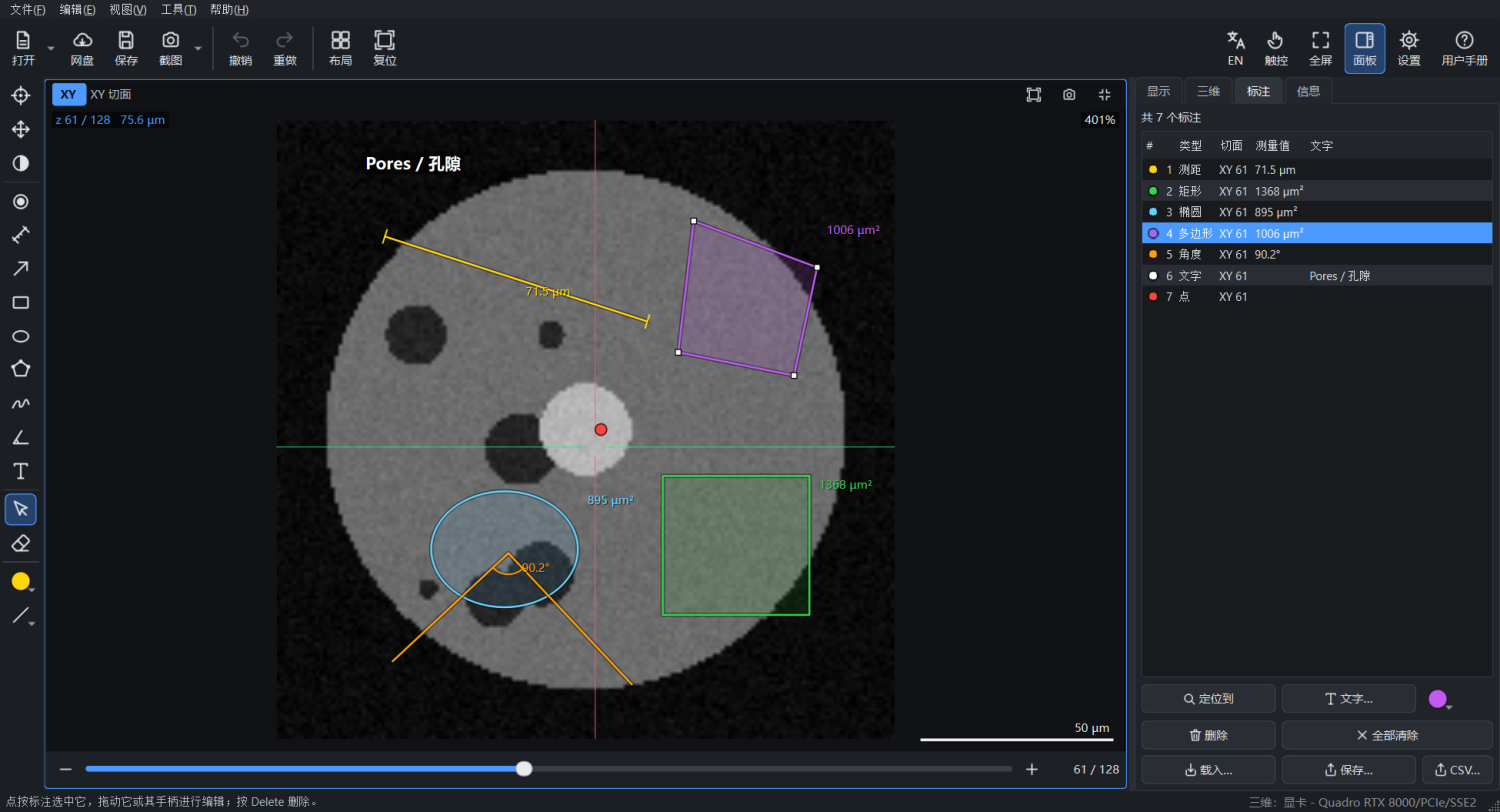
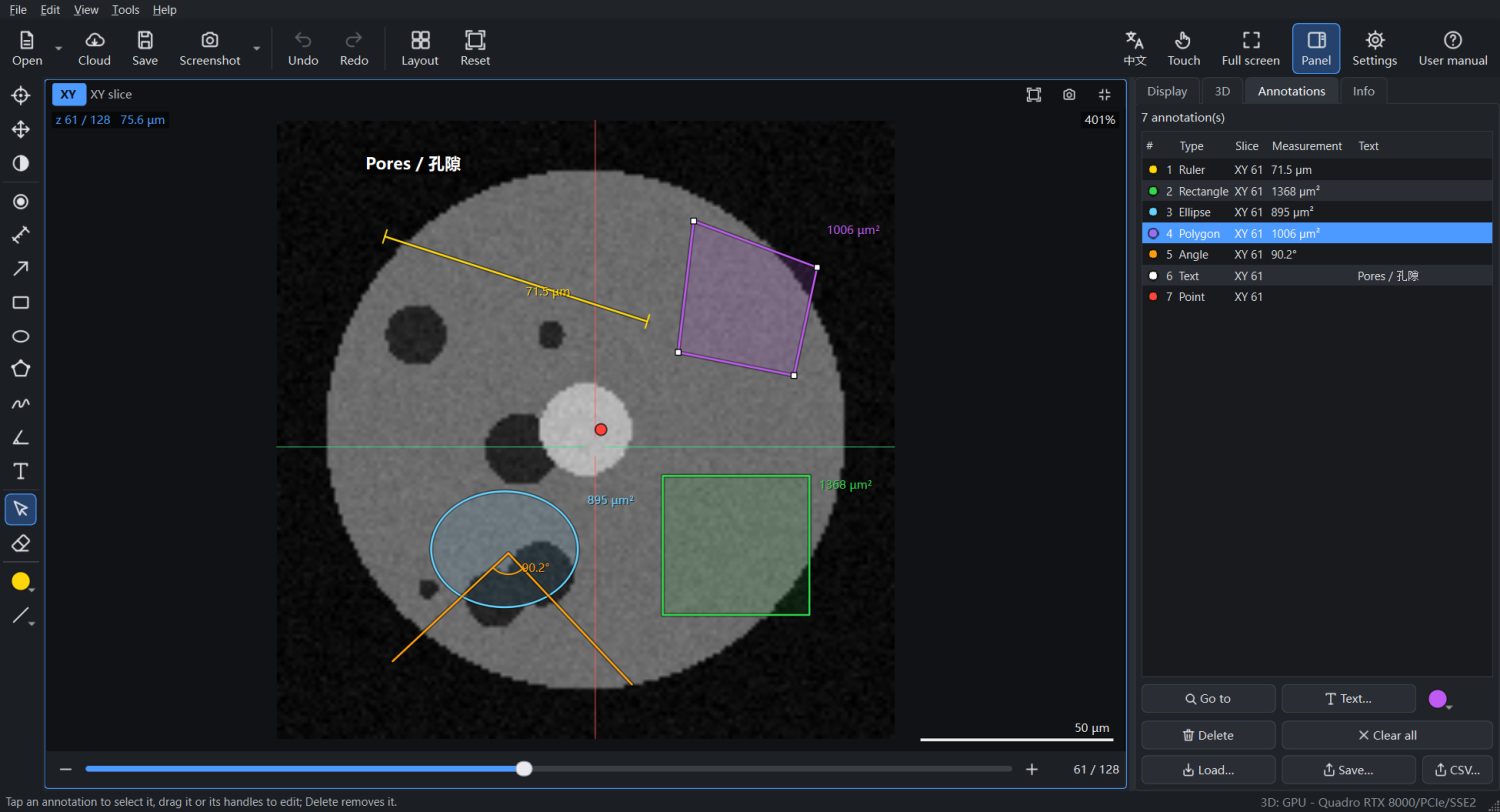
Ruler, rectangle, ellipse, polygon, angle and text on a slice, with the annotation list.
Annotations are drawn in the 2D views; each belongs to one slice of one view. Lengths, areas and angles use the voxel size, so they are in physical units (µm, mm...). Annotations also appear in the 3D view.
Tool (key)
How to draw
Shows
Point (P)
Click / tap
a marker (with optional text)
Ruler (L)
Drag from start to end
length
Arrow (A)
Drag from tail to tip
-
Rectangle (R)
Drag corner to corner
area
Ellipse (E)
Drag across its bounding box
area
Polygon (G)
Click the corners; click the first corner again, double-click, or press Enter to close
area
Freehand (F)
Draw
length
Angle (Q)
Click three points: end of first arm, vertex, end of second arm
angle
Text (T)
Click, then type the text
the text
Select / edit (S): click an annotation to select it; drag it to move it, drag a white handle to change a point; double-click a text to edit it. Delete removes the selected annotation.
Eraser (X): click or drag over annotations to delete them.
Colour and line width (bottom of the tool column) apply to new annotations and to the selected one.
Undo / Redo: Ctrl+Z / Ctrl+Y or the toolbar buttons. Esc cancels a drawing in progress.
Annotations page: the list of all annotations with their measurements. Selecting an item jumps to its slice. Buttons: Go to, Text..., colour, Delete, Clear all, Load..., Save... (JSON) and CSV... (a table of all measurements with voxel coordinates, readable by Excel).
Automatic saving: annotations are saved automatically while you work and come back the next time you open the same data. Save (Ctrl+S) writes a JSON file you can keep with your data or share; if it is saved next to the data as <name>.annotations.json, it is loaded automatically too.
7. Screenshots
Screenshot (toolbar, F12): all visible views as they are arranged on screen, saved as a picture file.
The arrow beside it, the File > Screenshot menu or the camera button in each view header: Active view (Shift+F12), 3D view, Slice at full resolution (the current slice with its annotations and scale bar, one image pixel per voxel), Copy all views to the clipboard (Ctrl+Shift+C), Open the screenshot folder.
Pictures go to Pictures\PortableVolumeViewer with the data name and the time in the file name. Folder, format (PNG, JPG, TIFF, BMP) and size (1x, 2x, 3x) are set under Settings > General.
8. Touch screens
Touch mode: finger-sized buttons, sliders and handles.
Gesture
2D views
3D view
One finger
the active tool (move the cross-hairs, draw, select...)
rotate
Two fingers
pan and pinch-zoom (an unfinished drawing is cancelled)
pan, pinch-zoom, twist to roll
Three fingers up / down
walk through the slices
-
Double tap
maximize / restore the view
maximize / restore the view
Touch mode (toolbar button Touch) enlarges every button, slider, handle and list row for fingers. It is switched on automatically on a computer with a touch screen and can be changed at any time. Every function is reachable with taps; no right-click or keyboard is needed. A pen works like a mouse.
9. Cloud drives and web links
File > Open from the cloud.
Choose Cloud in the toolbar (Ctrl+Shift+D). Downloads are kept in the cache and reused when you open the same file again.
Google Drive
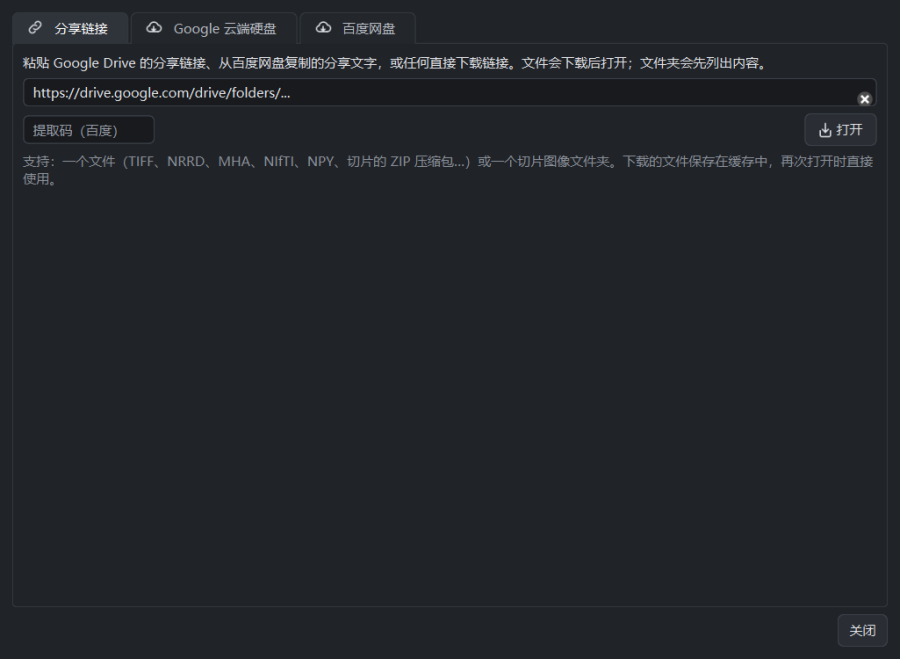
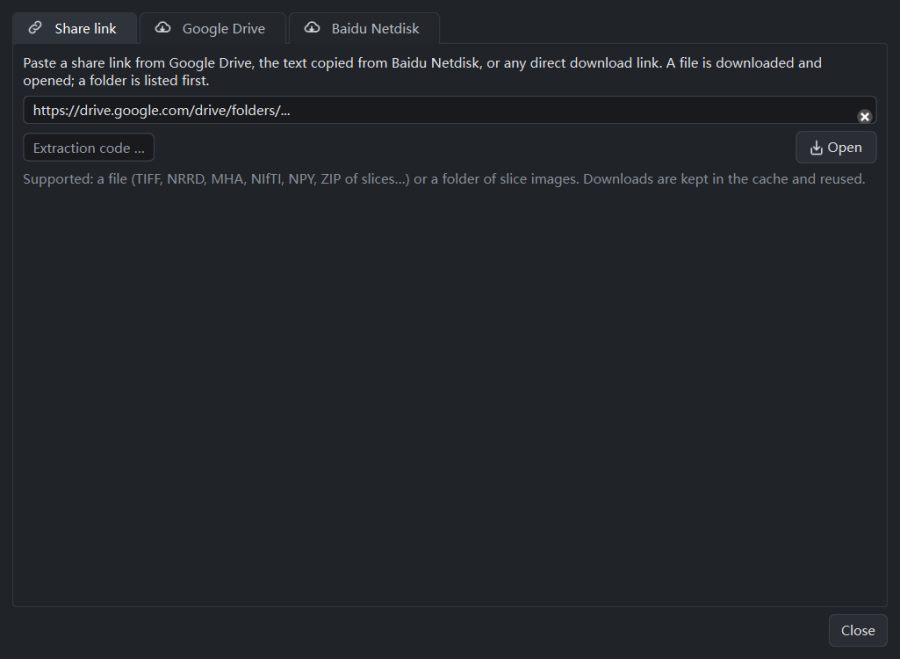
Share links (no sign-in): paste the link of a file or folder that is shared with Anyone with the link on the Share link page and press Open. A file is downloaded and opened; a folder is listed - open one of its files, or press Open this folder as a volume to download its images as a stack.
Your own Drive (optional): needs your own Google OAuth client. In the Google Cloud console create a project, enable the Google Drive API, set up the OAuth consent screen (add yourself as a test user), create an OAuth client ID of type Desktop app, and enter the client ID and secret under Settings > Cloud. Then press Sign in on the Google Drive page; your browser opens for the sign-in and the program continues by itself. Access is read-only.
Baidu Netdisk (百度网盘)
Create a free app on the Baidu Netdisk open platform (pan.baidu.com/union, type: software) and enter its AppKey and SecretKey under Settings > Cloud.
Press Sign in on the Baidu Netdisk page: a code is shown, your browser opens the Baidu page where you enter it (or scan the QR code with the Baidu Netdisk app). Then browse My netdisk and open a file or folder.
Share links: Baidu does not allow other programs to open share links. Paste the shared text (link and extraction code) on the Share link page and press Open: the program explains this and offers to open the link in your browser (with the extraction code filled in). Save the files to your own netdisk there, then open them from My netdisk.
Other links
Any direct download link (http or https) can be pasted on the Share link page or with Open > Open web link.... Dropbox and GitHub file links are converted to direct downloads automatically.
10. Settings and where data is kept
Settings > General: language (or like Windows), touch mode (automatic / on / off), loading at reduced resolution, screenshot folder, format and size.
Settings > 3D rendering: automatic, graphics card, software OpenGL or CPU only.
Settings > Cloud: Google API key and OAuth client, Baidu AppKey and SecretKey, the download cache (size, open, clear).
Language: the 中文 / EN button (Ctrl+L) switches the whole interface immediately, including the standard dialogs.
Settings, the cache, automatically saved annotations, sign-in tokens (encrypted for your Windows account) and logs are kept in %LOCALAPPDATA%\PortableVolumeViewer. To keep everything beside the program instead (fully portable, e.g. on a USB stick), create a folder named UserData next to PortableVolumeViewer.exe. To remove the program, delete its folder (and %LOCALAPPDATA%\PortableVolumeViewer if you want to remove the settings too).
11. Keyboard and mouse reference
Action
Keys / mouse
Open file / folder / cloud
Ctrl+O / Ctrl+Shift+O / Ctrl+Shift+D
Save annotations
Ctrl+S
Undo / redo
Ctrl+Z / Ctrl+Y
Delete the selected annotation
Delete
Screenshot all views / active view / to clipboard
F12 / Shift+F12 / Ctrl+Shift+C
Maximize 3D / XY / YZ / XZ
Ctrl+1 / Ctrl+2 / Ctrl+3 / Ctrl+4
Maximize the active view / back to 2 x 2
F10, double-click, Maximize button
Fit all views
Ctrl+0
Side panel / full screen / language / settings / manual
F9 / F11 / Ctrl+L / Ctrl+, / F1
Tools
N navigate, H pan, W window/level, P point, L ruler, A arrow, R rectangle, E ellipse, G polygon, F freehand, Q angle, T text, S select, X eraser
2D: slices
wheel, Up/Down or Left/Right arrows, Page Up / Page Down
2D: zoom
wheel button + drag, Ctrl + wheel, + / -
2D: pan / fit
right-button drag / Home
2D: drawing
Enter finishes a polygon, Esc cancels
3D
left drag rotate, right drag pan, wheel-button drag or wheel zoom, arrows rotate, + / - zoom, Home or R reset
12. Troubleshooting
The 3D view stays black or says "Starting the 3D view..."
The graphics test takes a few seconds at start-up. If it remains black, choose Settings > 3D rendering > Software OpenGL and restart.
"The volume needs ... of memory"
Accept loading at reduced resolution, close other programs, or set Settings > General > Loading to every 2nd voxel.
The YZ / XZ views look squashed or stretched
The Z voxel size is probably wrong. Correct it on the Info page and press Apply.
Images of a folder are in the wrong order
Files are sorted naturally by name (2 before 10). Rename them so that the numbers reflect the slice order.
Google Drive says the file is not public or the download limit is reached
Ask the owner to share it with "Anyone with the link", try again later, or sign in with your own Google account.
Where is the log?
%LOCALAPPDATA%\PortableVolumeViewer\logs\pvv.log (or UserData\logs in portable mode). Please attach it when you report a problem to info@vyz.world.